How to define a device and interact with points
To interact with another controller on the BACnet network, you use the BAC0.device function. This creates a Python object representing the remote device, allowing you to read and write points, access properties, and use various helper methods.
Define a controller
Once the bacnet variable is created, you can define devices.
Example:
import BAC0
bacnet = BAC0.start()
# or specify the IP you want to use / bacnet = BAC0.start(ip='192.168.1.10/24')
# by default, it will attempt an internet connection and use the network adapter
# connected to the internet.
# Specifying the network mask will allow the usage of a local broadcast address
# like 192.168.1.255 instead of the global broadcast address 255.255.255.255
# which could be blocked in some cases.

# Query and display the list of devices seen on the network
bacnet.discover()
await bacnet.devices

# Define a controller (this one is on MSTP #3, MAC addr 4, device ID 5504)
mycontroller = await BAC0.device('3:4', 5504, bacnet)

# Get the list of "registered" devices
bacnet.registered_devices
Note
BAC0.device(…) is asynchronous and must be awaited. It returns the device instance once built.
Some caveats
Segmentation
Some devices do not support segmentation. BAC0 will try to detect that and will not allow “read property multiple” to be used. But it is sometimes better to speciy to BAC0 that the device doesn’t support segmentation.
To do so, use the parameter:
my_old_device = await BAC0.device('3:4', 5504, bacnet, segmentation_supported=False)
Object List
By default, BAC0 will read the object list from the controller and define every supported points found inside the device as points. This behaviour may not be optimal in all use cases. BAC0 allows you to provide a custom object list when creating the device.
To do so, use this syntax:
# Define your own list
my_obj_list = [('file', 1),
             ('analogInput', 2),
             ('analogInput', 3),
             ('analogInput', 5),
             ('analogInput', 4),
             ('analogInput', 0),
             ('analogInput', 1)]

# Provide it as an argument
fx = await BAC0.device('2:5',5,bacnet, object_list = my_obj_list)
Look for points in controller
Example:
mycontroller.points
Read the value of a point
To read a point, simply ask for it using bracket syntax:
mycontroller['point_name']
Writing to Points
Simple write
If point is a value:
analogValue (AV)
binaryValue (BV)
multistateValue (MV)
You can change its value with a simple assignment. BAC0 will write the value to the object’s presentValue at the default priority.:
mycontroller['point_name'] = 23
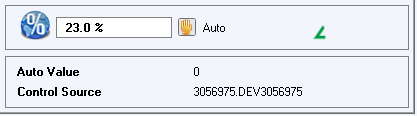
Example from Delta Controls OWS Workstation
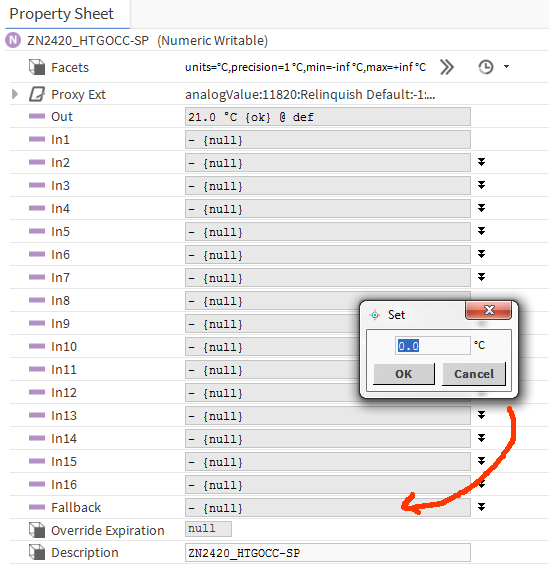
Example from Niagara 4 station
Write to an Output (Override)
If the point is an output:
analogOutput (AO)
binaryOutput (BO)
multistateOutput (MO)
You can change its value with a simple assignment. BAC0 will write the value to the object’s presentValue (a.k.a override it) at priority 8 (Manual Operator).:
mycontroller['outputName'] = 45
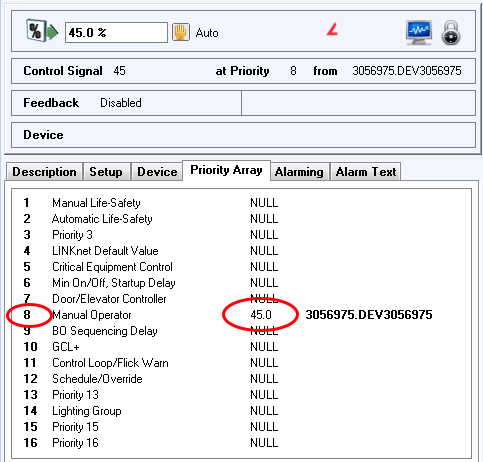
Example from Delta Controls OWS Workstation
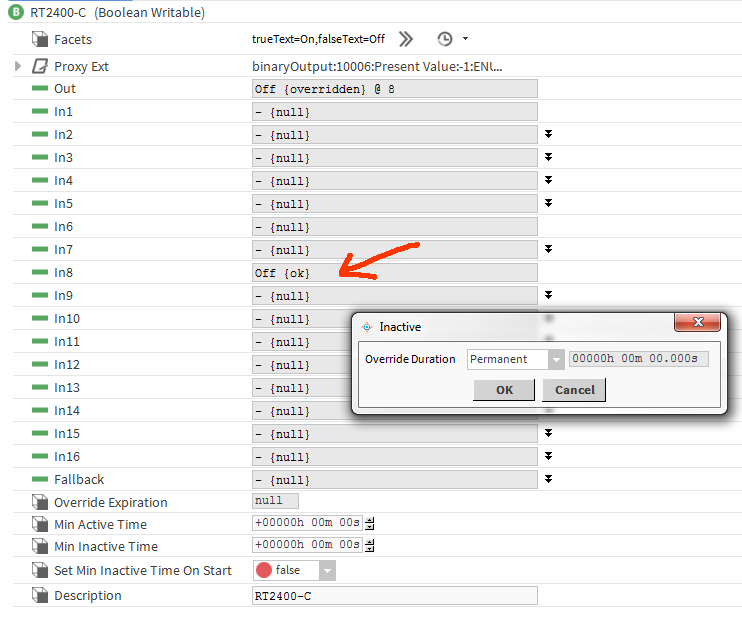
Example from Niagara 4 station
Write to an Input (simulate)
If the point is an input:
analogInput (AI)
binaryInput (BI)
multistateInput (MI)
You can simulate its value with a simple assignment, decoupling the hardware input from the application software. BAC0 sets the point’s out_of_service to True and writes the point’s presentValue to the value you provide. While in this state, the controller uses the internal software value instead of the physical I/O reading.
mycontroller[‘inputName’] = <simulated value>
mycontroller[‘Temperature’] = 23.5 # simulating instead of actual reading of 18.8 C
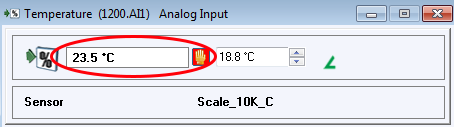
Example from Delta Controls OWS Workstation
In a Niagara station, you would need to create a new point using the “out_of_service” property, then set this point to True. Then you would need to create (if not already done) a point writable to the present value property and write to it. No screenshot available.
Releasing an Input simulation or Output override
To return control of an Input or Output back to the controller, it needs to be released. Releasing a point returns it automatic control. This is done with an assignment to ‘auto’.:
mycontroller['pointToRelease'] = 'auto'
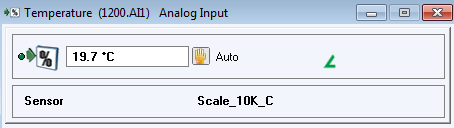
Example from Delta Controls OWS Workstation
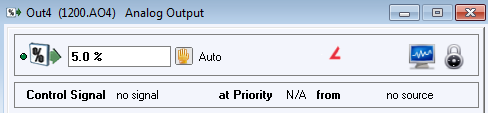
Example from Delta Controls OWS Workstation
In a Niagara station, you would need to create a new point using the “out_of_service” property, then set this point to False. No screenshot available.
Setting a Relinquish_Default
When a point (with a priority array) is released of all override commands, it takes on the value of its Relinquish_Default. [BACnet clause 12.4.12] If you wish to set this default value, you may with this command:
await mycontroller['pointToChange'].default(<value>)
await mycontroller['Output'].default(75)

Example from Delta Controls OWS Workstation
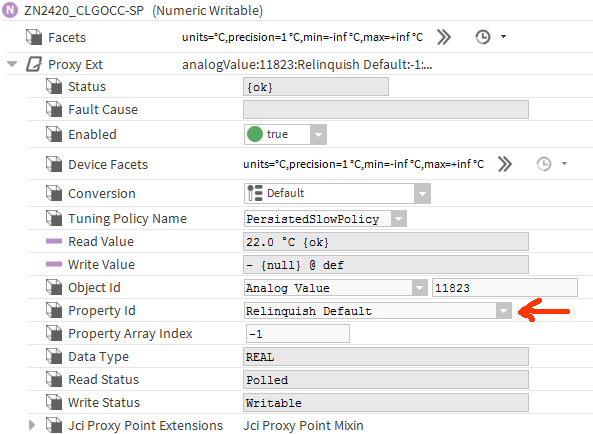
Example from Niagara 4 station
BACnet properties
BAC0 defines its own “image” of a controller. All points inside a BAC0.device are Python objects with which we can interact. If you want to access native BACnet objects and properties there are functions you can use.
Read all device properties
You can retrieve the list of device properties using:
props = await device.bacnet_properties()
# returns a cached version by default. If things have changed, refresh using:
await device.update_bacnet_properties()
props = await device.bacnet_properties()
Often, in this list, you will see proprietary properties added by the manufacturer. They can be recognize by their name, an integer.
Read Property
You can read simple properties using
prop = ('device',100,'objectName')
await device.read_property(prop)
# this will return the object name
prop = ('analogInput',1,'priorityArray')
await device.read_property(prop)
# this will return the priority array of AI1
Write property
You can write to a property using
prop = ('analogValue',1,'presentValue')
await device.write_property(prop,value=98,priority=7)
Write description
The write_property method will not work to update a description if it contains a space.
Instead, use update_description against a point:
await device['AI_3'].update_description('Hello, World!')
You can then read the description back, as a property:
await device['AI_3'].read_property('description')
or going back to the device:
await device.read_property(('analogInput',3,'description'))